
From desktop panel to Android tablet: a read-only Qt viewer for a ROS tugger robot
Warehouse tugger robots pull trolleys from A to B on their own. When something looks wrong (the robot stops, hesitates near a trolley, refuses to move), the first question on the floor is always the same: what does the robot see right now?
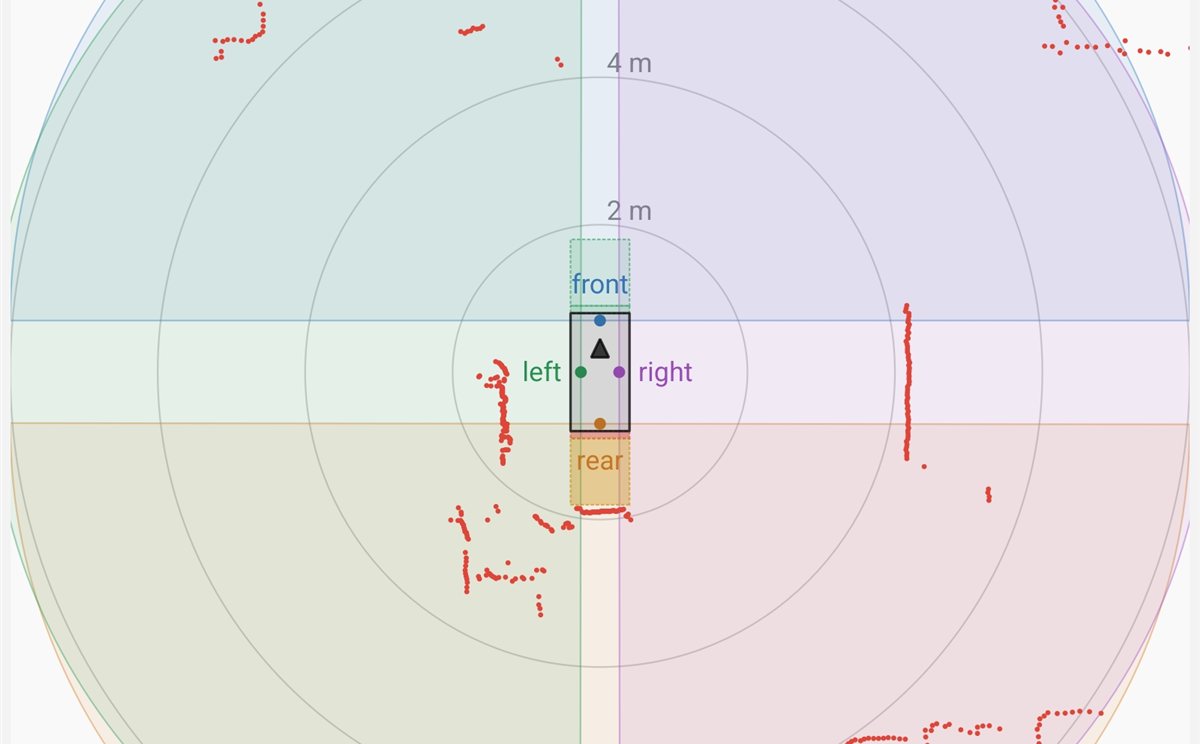
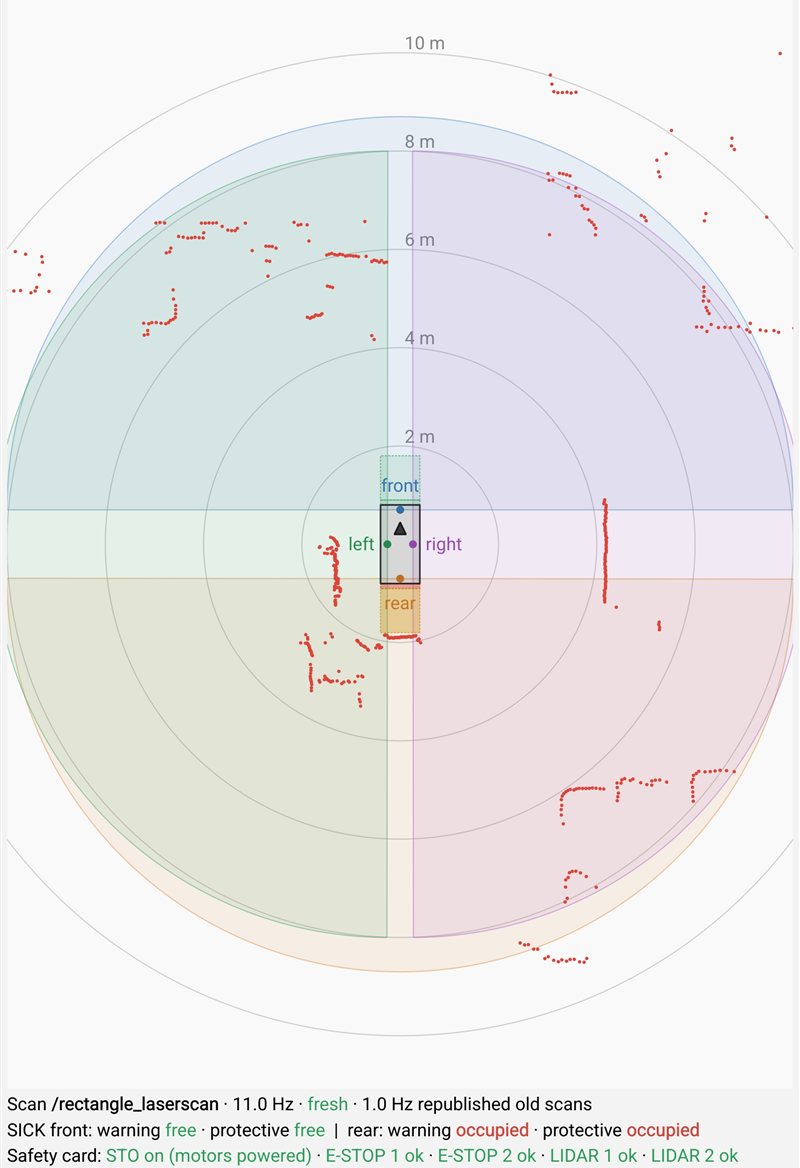
The robot already has a control HMI, which is the screen you use to send missions and move it. What was missing was the opposite: a view-only screen anyone can look at, which can't send anything to the robot. It should show the lidar scan, the safety scanner's fields and whether the motors' safe torque off (STO) is cut, live, on a tablet.
This post is about how that tablet app came to be. It started from an existing Qt desktop panel and ended as Tugger Live Viewer, a portrait Android app with exactly one button. Along the way: a tiny protocol instead of rosbridge, Qt Widgets on Android, testing with a recorded rosbag through a WireGuard tunnel, and doing the LGPL properly when you hand an APK to a client.
The robot side: two computers and a read-only monitor
The robot runs ROS 1 (Melodic) on two computers:
- a main PC with the ROS master, navigation and the docking logic;
- a Raspberry Pi for the hardware: four 2D lidars merged into one scan, a SICK safety scanner, odometry and the CAN bus.
Instead of exposing ROS to the outside world, a small C++ node, client_monitor, runs on the
main PC. It reads the ROS graph through the master's XML-RPC API, subscribes to a handful of
topics, and serves a newline-delimited JSON stream on a TCP port. It is strictly read-only:
it publishes nothing, calls no service and sets no parameter.
{"t":"lidar","topic":"/rectangle_laserscan","hz":12.0,"age":0.03,
 "sick":{"front_protective":false,"rear_protective":true,"scn":1},
 "lidars":[{"name":"front_lidar","x":0.7,"y":0,"yaw":0,"visible":[[-1.5708,1.5708]]}]}
Why not rosbridge? I had three reasons:
- The clients don't need ROS. A Qt app speaks TCP and JSON; that's all.
- Bandwidth over a VPN. A raw
LaserScanis big. The monitor folds each scan into 720 angular bins (0.5°), keeps the nearest return per bin, so obstacles survive the downsampling, and sends them as base64uint16millimetres. That is about 2 KB per scan, capped at 5 Hz. - Nothing is subscribed unless someone is watching. The scan and safety subscriptions exist only while at least one client asks for them, so an idle robot pays nothing.
// Nearest return per angular bin, uint16 millimetres, 0 = no return.
const double bin_width = 2.0 * M_PI / bins;
for (size_t i = 0; i < scan.ranges.size(); ++i) {
  const double r = scan.ranges[i];
  if (!std::isfinite(r) || r < scan.range_min || r > max_range) continue;
  double a = std::fmod(scan.angle_min + i * scan.angle_increment + M_PI, 2.0 * M_PI);
  if (a < 0) a += 2.0 * M_PI;
  const int bin = std::min(bins - 1, int(a / bin_width));
  const uint16_t mm = uint16_t(std::min(65535.0, std::max(1.0, std::round(r * 1000.0))));
  if (out[bin] == 0 || mm < out[bin]) out[bin] = mm;
}
The safety scanner's status message is a custom type, but it is only 8 bytes (an int32
scenario and four booleans). The monitor reads it with topic_tools::ShapeShifter and checks
its MD5 instead of depending on the message package. If the format ever changes, the panel says
"unexpected message type" instead of showing garbage.
The desktop panel first
The first client was a Qt 5 Widgets desktop panel for Linux and Windows. It shows the
machines, the ROS stack, the node tree and the lidar view, and it can record a session into
SQLite and replay it later. Getting the Windows build working mostly meant boring things: a
Windows branch for CPU, memory and disk stats, windeployqt, and keeping a 20 GB history out of
the roaming profile.
The part that matters for this story: the panel was split so that the connection
(MonitorClient) and the lidar drawing (LidarView) don't know anything about the window
around them.
Qt Widgets on Android: better than its reputation
The common advice is "Qt Widgets don't belong on mobile, use QML". For a phone, yes. For a 10–11" tablet showing one dense, read-only screen, Widgets turned out to be perfectly fine. The tablet app is a separate folder that compiles the desktop panel's connection and lidar files unchanged; only the window is new. A fix in the lidar view reaches both apps.
Building with Qt 5.15 + CMake + NDK r21 works, with a few traps:
-
On Android the app is a shared library, loaded by Qt's Java activity:
if(ANDROID) add_library(${PROJECT_NAME} SHARED ${SOURCES}) # libtugger_live_viewer_<abi>.so else() add_executable(tugger-live-viewer WIN32 ${SOURCES}) endif() -
Qt 5.15.2 silently drops
ANDROID_MIN_SDK_VERSION. The values are computed, but the deployment-settings template has no placeholder for them, so the APK quietly declared Android 5 with target 28. The fix is a custombuild.gradlein the package source directory with the versions written in. -
Windows paths in that JSON break the build. CMake writes the SDK path unescaped into a JSON file, so
D:\Android\sdkturns into escape sequences. Use forward slashes. -
The Gradle daemon kept the build "running" forever because it held the log handle open. Setting
GRADLE_OPTS=-Dorg.gradle.daemon=falsefixed that. -
Touch: desktop widgets scroll with scroll bars. One line,
QScroller::grabGesture(...), gives finger flicking. For the lidar view, aQPinchGesturehandler turned the wheel zoom into a pinch zoom, and desktop touchpads get it for free.
Iterating with the people who use it
The first tablet build was basically the desktop panel squeezed into landscape. Then came the first real-device screenshot, and the feedback was blunt: remove the machine table, remove the host editing, remove the ROS tree, remove docking, remove the lidar-rates button. Portrait only.
Each removal made the app better. The final screen has a header with the robot's state and the VPN status, the lidar view, three status lines (scan freshness, safety-scanner fields, STO and its inputs), and one button: About.
One surprise: the app asks Android for portrait, but on a Xiaomi tablet running HyperOS
(Android 16), adb shell wm get-ignore-orientation-request printed true. On that tablet, the
system simply ignores what apps ask for on large screens. The answer was the system rotation
lock, not code.
Testing without the robot: a rosbag behind WireGuard
The tablet must reach the robot over WireGuard in production, and I didn't want the test
setup to differ from that path. So I built a mock robot that looks exactly like the real one
from the tablet's side: same IP address, same port, a real tun0 interface on the tablet.
1. A rosbag-driven mock monitor in Python. It reads a 125-second recording from the real
robot with the pure-Python rosbags package (no ROS
install, works on Windows), and replays it in a loop. It produces the same messages as the C++
monitor: the same binning, the same raw 8-byte safety-scanner decoding, and the lidar mounts
read from the robot's real YAML configuration. One Windows-specific catch: rosbags builds
PosixPath objects, which Python 3.13 refuses to instantiate on Windows, so the workaround is
to swap in PurePosixPath.
2. A user-space WireGuard endpoint in Go. wireguard-go ships an in-memory network stack
(gVisor's netstack). With it, a 200-line program can be the robot inside the tunnel: it owns
the robot's IP address and forwards its TCP port to the local mock. It needs no TUN driver and
no administrator rights.
tun, tnet, _ := netstack.CreateNetTUN([]netip.Addr{tunnelIP, robotIP}, nil, 1420)
dev := device.NewDevice(tun, resilientBind{conn.NewDefaultBind()}, logger)
dev.IpcSet(config) // keys, peer, allowed IPs
dev.Up()
ln, _ := tnet.ListenTCPAddrPort(netip.AddrPortFrom(robotIP, 9870))
// accept → net.Dial("127.0.0.1:9870") → copy both ways
Two lessons from that part:
- On Windows, a UDP
recvcan fail withWSAECONNRESET. It's the ICMP "port unreachable" from an earlier packet, for example when the tablet's tunnel isn't up yet.wireguard-gotreated it as fatal and stopped receiving for good. A smallBindwrapper that ignores error 10054 fixed it. - Let the PC open the tunnel. Without admin rights you can't add an inbound firewall rule, but a stateful firewall lets the replies of an outgoing flow back in. So the PC starts the handshake towards the tablet, and the tablet's WireGuard app answers. (On one Wi-Fi network, the PC's security suite dropped the replies anyway; on another, it worked within seconds. Always check which network you're on before debugging the tunnel.)
The app itself has no idea any of this is a mock. Pointing it at the real robot will be a WireGuard profile change, not a code change.
Shipping an APK with Qt: doing the LGPL properly
Handing the APK to a client means distributing Qt, and Qt 5.15 open source is LGPLv3. That does not mean the app's code has to be public. It means:
- Tell users Qt is used and under which licence. That's the About screen, with the LGPLv3 and GPLv3 texts.
- Keep the third-party notices of what's inside Qt (zlib, libpng, FreeType, HarfBuzz,
libtiff…). Qt declares them in
qt_attribution.jsonfiles, so a short Python script turns the source archives into one notices file: 66 components. - Ship the exact Qt source with the APK. Then there's no "written offer valid three years" to maintain.
- Let users replace Qt. Dynamic linking covers the native
.sofiles. But Qt's Android Java part (QtAndroid.jar) is compiled intoclasses.dex, so the delivery also includes the packaging files (manifest,build.gradle, icons) needed to rebuild the whole APK with another Qt.
The thing to watch is adding a Qt module without checking its licence: a few are GPL-only in the open-source edition.
Delivery: a private repository, Git LFS and one command
Deliveries go to a private GitLab repository the client can read. The APK and the Qt source (about 70 MB) go through Git LFS, and each version is a tag. The README warns that cloning without LFS gives you 130-byte pointer files instead of an APK, which saves a support call.
Publishing is one PowerShell script. It refuses to run unless you're on an up-to-date, clean
main, the version matches in four files, the tag is free and the Android versionCode goes
up. Then it builds, commits, tags, pushes, and re-clones to check that the APK really is 17 MB
and not a pointer. A -DryRun mode does everything in a throwaway clone.
What I'd keep
- A tiny purpose-built protocol beats a general bridge when the client is read-only and the link is a VPN.
- Split connection and drawing from the window early. It made the Android port mostly packaging work.
- Qt Widgets are fine on tablets for dense, read-only screens.
- Test through the production network path, even for the mock. Here that meant WireGuard, not "localhost".
- Remove features. The best version had one button.
Next up: the WireGuard server on the robot's network for the first live test, a proper release signing key, and eventually Qt 6.